How to Set Up an Instagram Business Account
Switch Instagram to a business account so customers can call you.
Customers use Instagram to check out local businesses. This video shows how to switch to a professional business account, add your contact details, turn on Display contact info so call buttons appear, connect your Facebook page and write a clear bio.
The 5 steps
- In the app, go to your profile, tap the menu, then account type and tools.
- Tap switch to professional account, pick your category and choose business.
- Add your business email, phone and address.
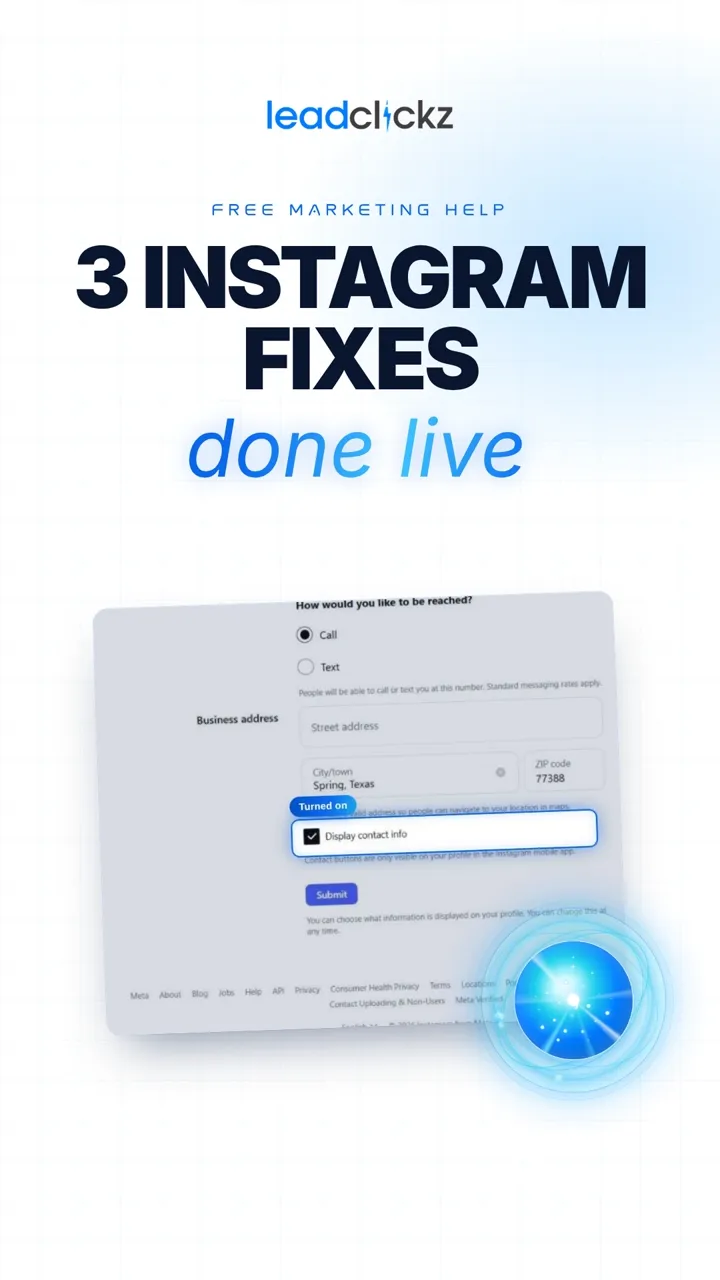
- Turn on display contact info or your call buttons won't show.
- Connect your Facebook page and write a bio that says what you do and where.
Go deeper: Organic Social Management
Questions this video answers
How do I switch Instagram to a business account?
Go to your profile, open the menu, choose account type and tools, then switch to a professional account and pick Business.
Why isn't the call button showing on my Instagram?
Turn on Display Contact Info. Without it, your call buttons won't show.
Should I connect Instagram to my Facebook page?
Yes. Connecting them makes it easier to manage posts, messages and ads together.
Full video transcript
37 percent of customers now use Instagram to find reviews of local businesses. Is your Instagram set up as a business? Here's how to do it right, for free.
These are the steps straight from Instagram's help center, plus the exact settings you'll see in the app!
Step one: in the app, go to your profile, tap the menu, then Account type and tools. Tap Switch to professional account.
Step two: pick the category that best describes what you do. Then choose Business, not Creator, and tap Next.
Step three: add your business email. Then your phone number, and whether people should call or text. And your business address, so people can find you.
Now the one most people miss. Turn on Display contact info. If it's off, your call and email buttons won't show on your profile.
Connect your Facebook Page, so your info matches everywhere. Then write a bio that says what you do and where. When Account type shows Business, you're set.
So: go to Account type and tools. Switch to professional account. Pick your category, then Business. Add your email, phone and address. And turn on Display contact info. That's the breakdown! Get trusted. Get chosen. Get the call. Close the deal!
One: in the app, go to your profile, tap the menu, then Account type and tools. Two: tap Switch to professional account, pick your category, and choose Business. Three: add your business email, phone and address. Four: turn on Display contact info, or your call buttons won't show. Five: connect your Facebook Page, and write a bio that says what you do and where.